 trace.
Frostline Trace / A visual tour
From artwork
to cut-ready.
Trace turns your image into precise paths, then checks them against real manufacturing limits. Six quick steps. Scroll at your own pace.
Enter the process ↓Frostline Trace / screenshots from the desktop app
01 / Bring it in
Start with any image.
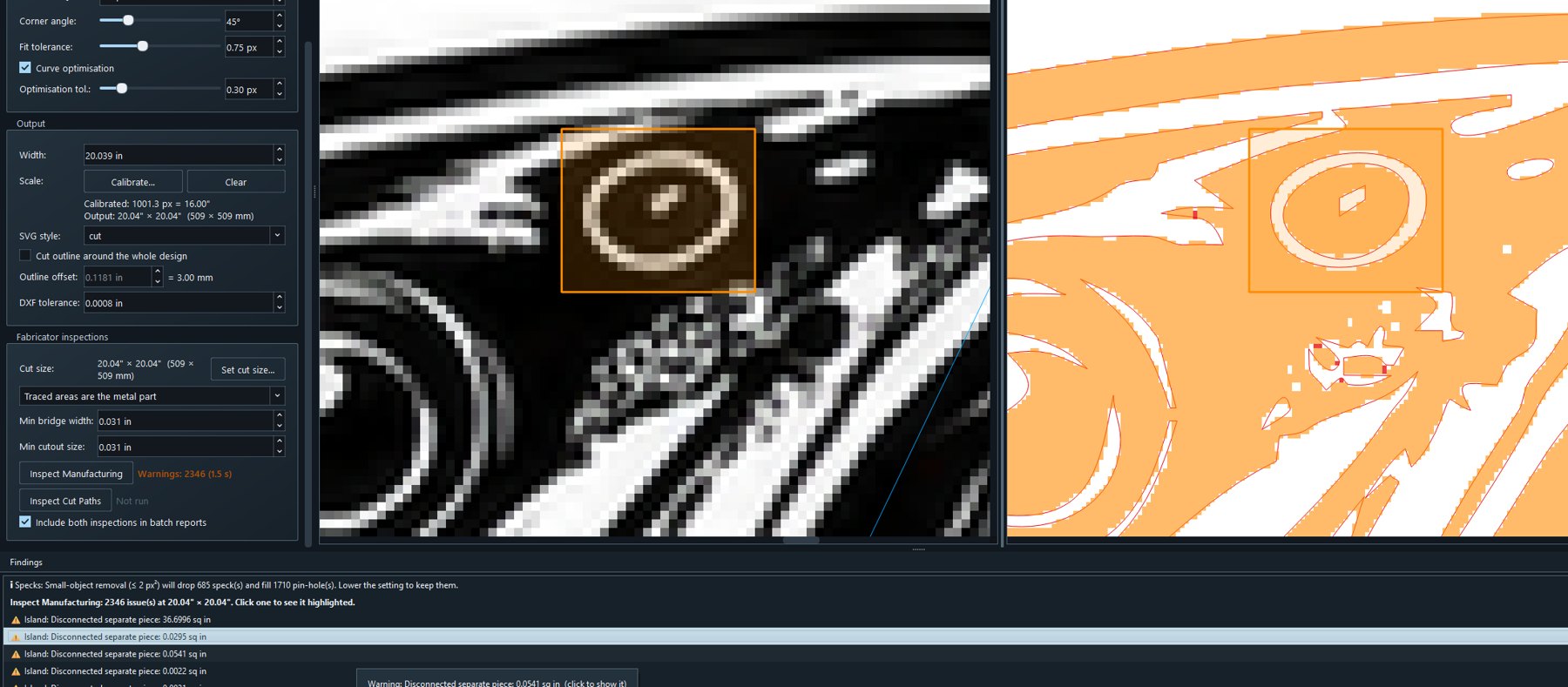
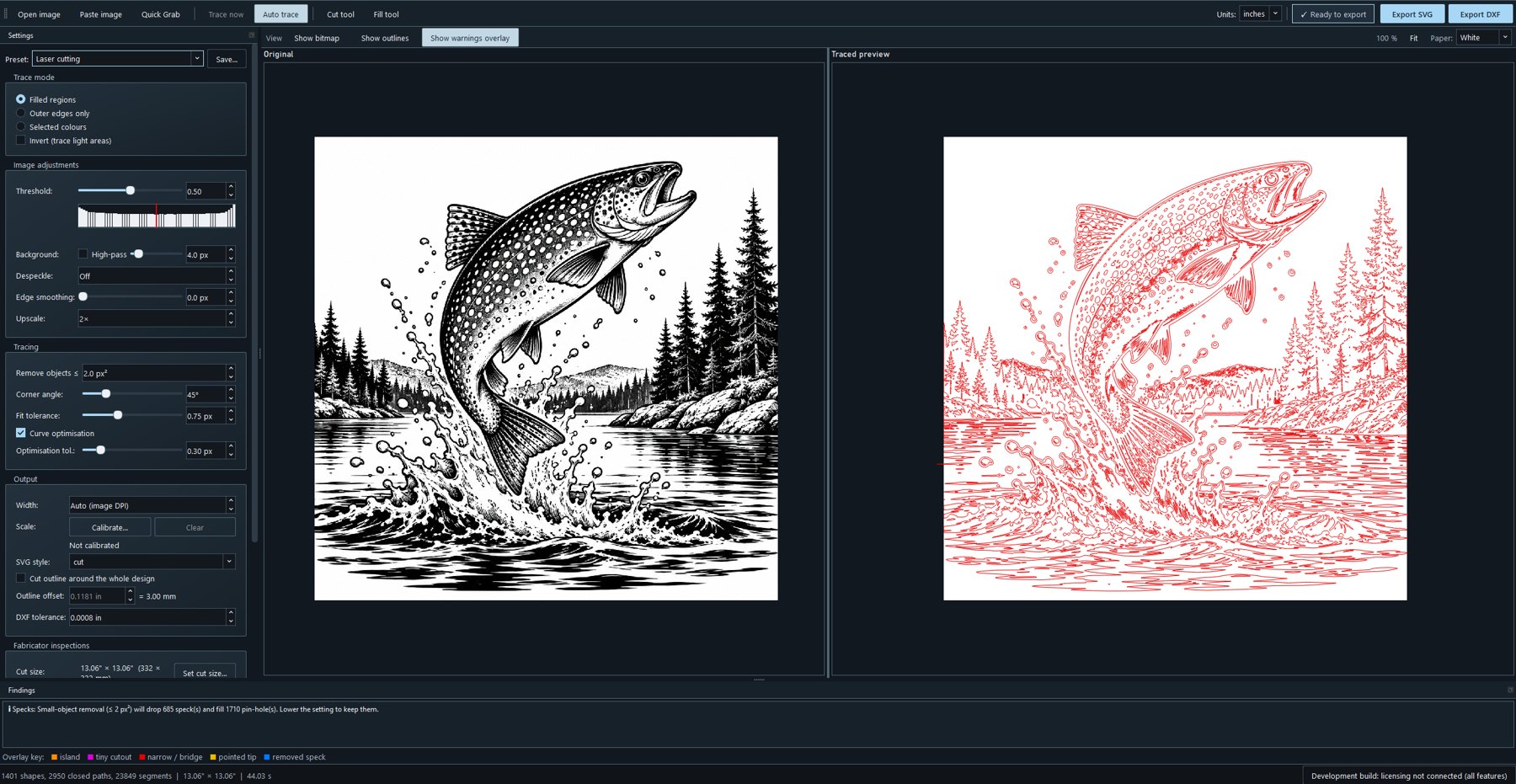
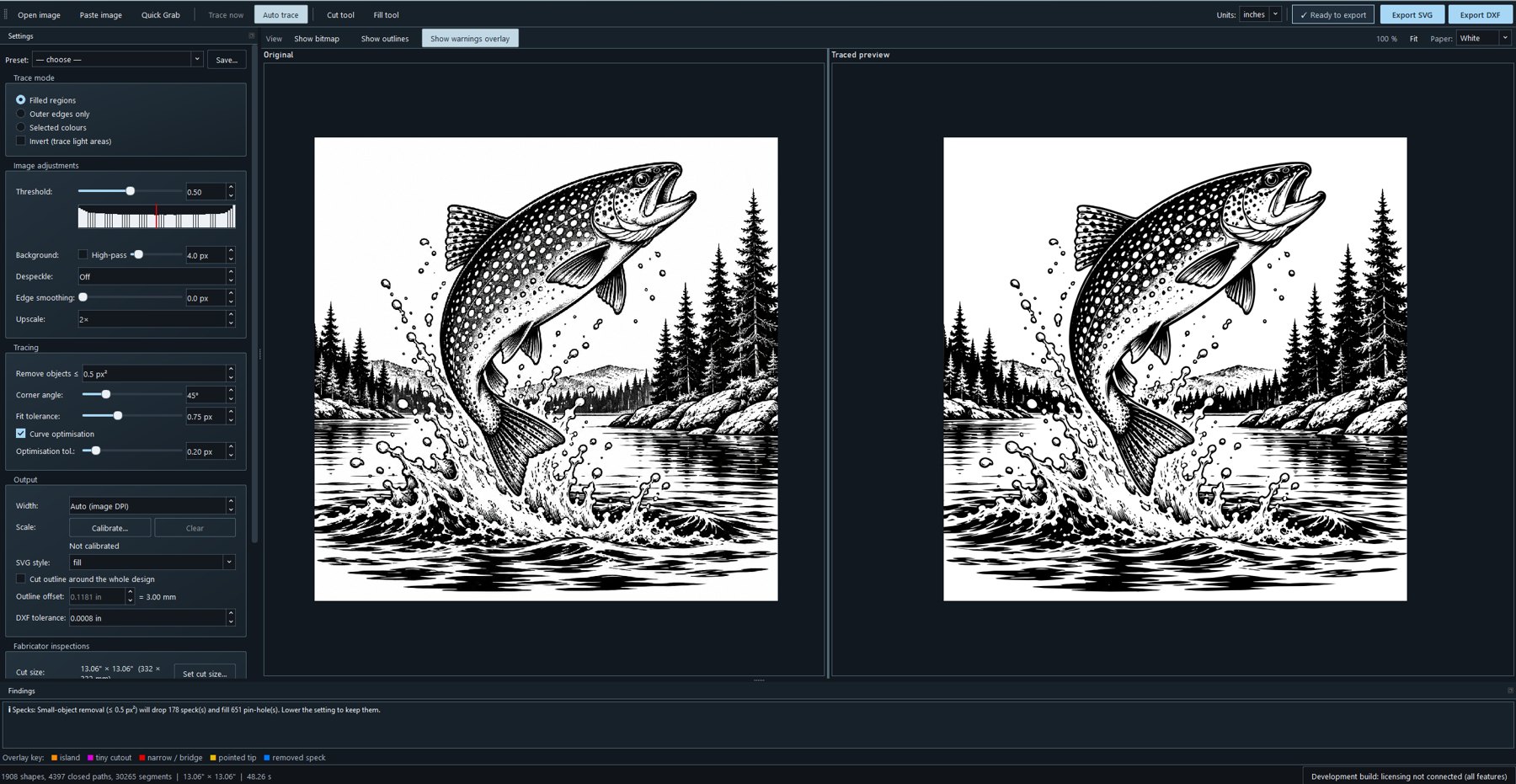
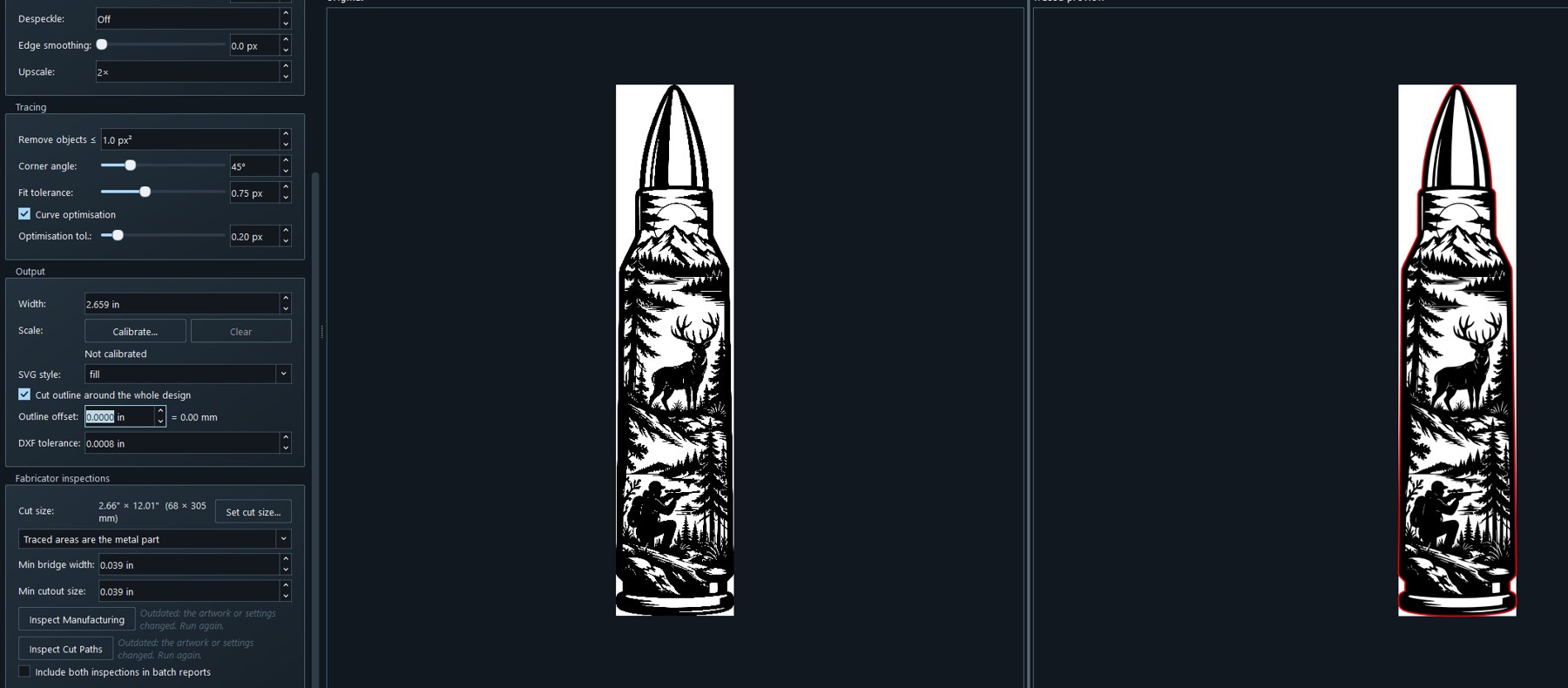
Drop in your artwork. Trace builds the cut-line preview beside it, with your original on the left and the traced result on the right.
02 / Find the line
From pixels to paths.
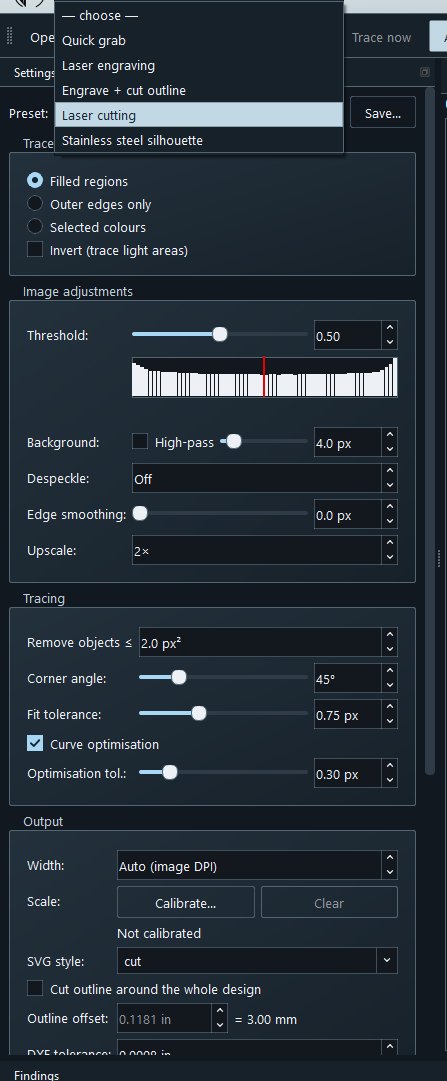
Start from a preset for the job, then tune threshold, smoothing and detail until the preview looks right.
03 / Get the size right
Real size. Real inches.
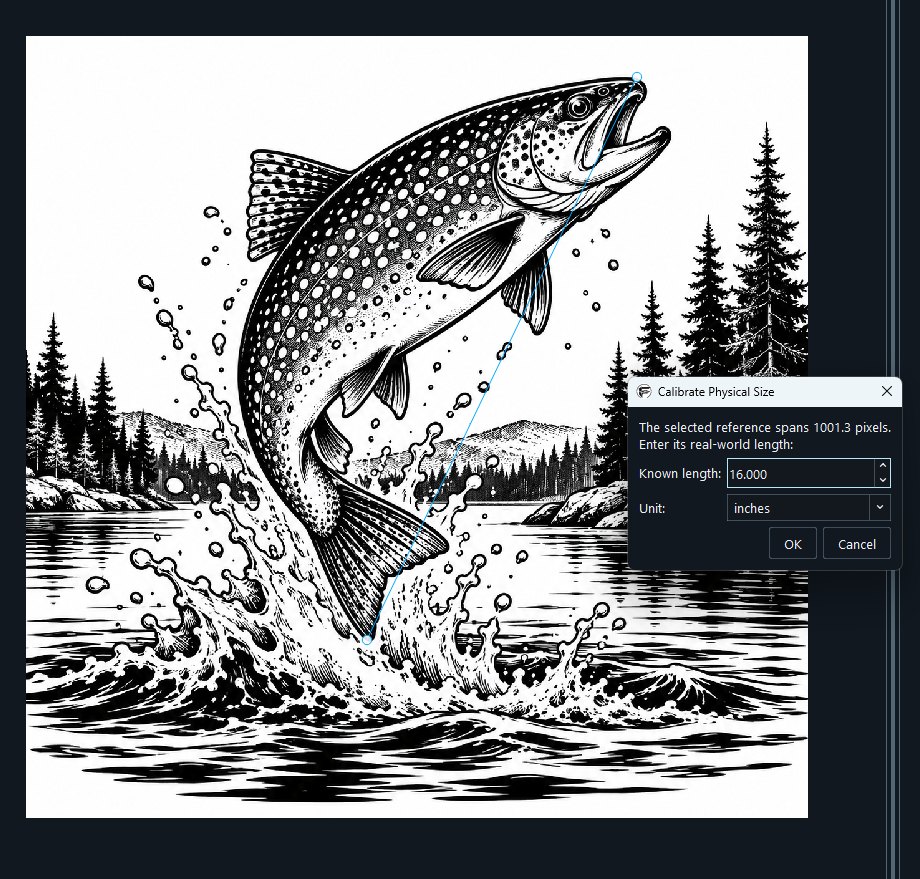
Click two points on something with a known length, type that length in, and the design scales to true inches or millimetres. Every check after this uses real dimensions.
04 / Look closer
Catch it before the cut.
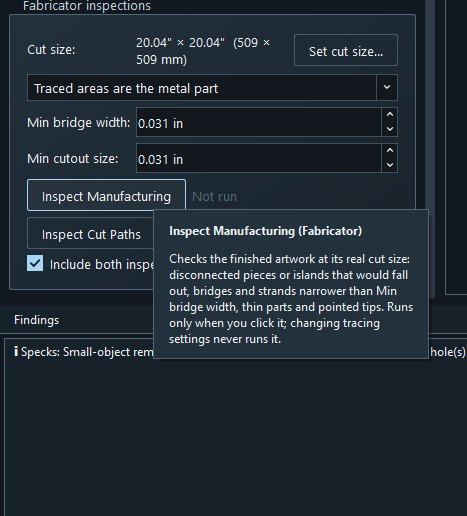
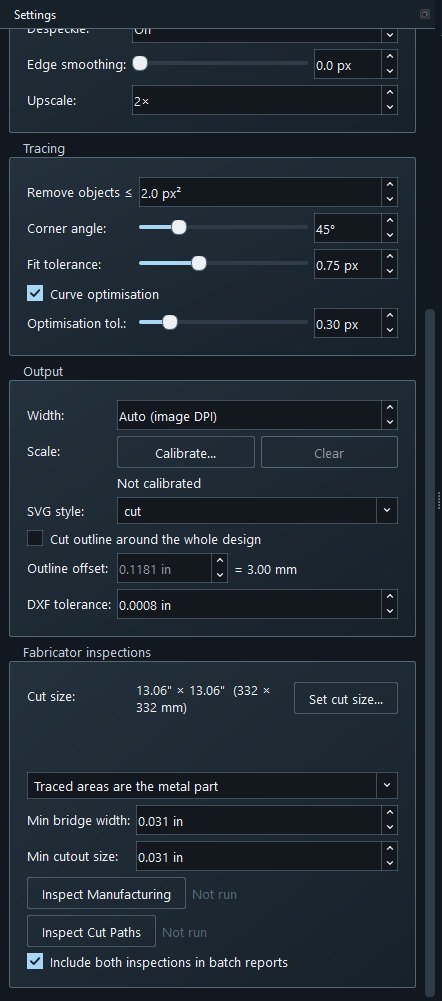
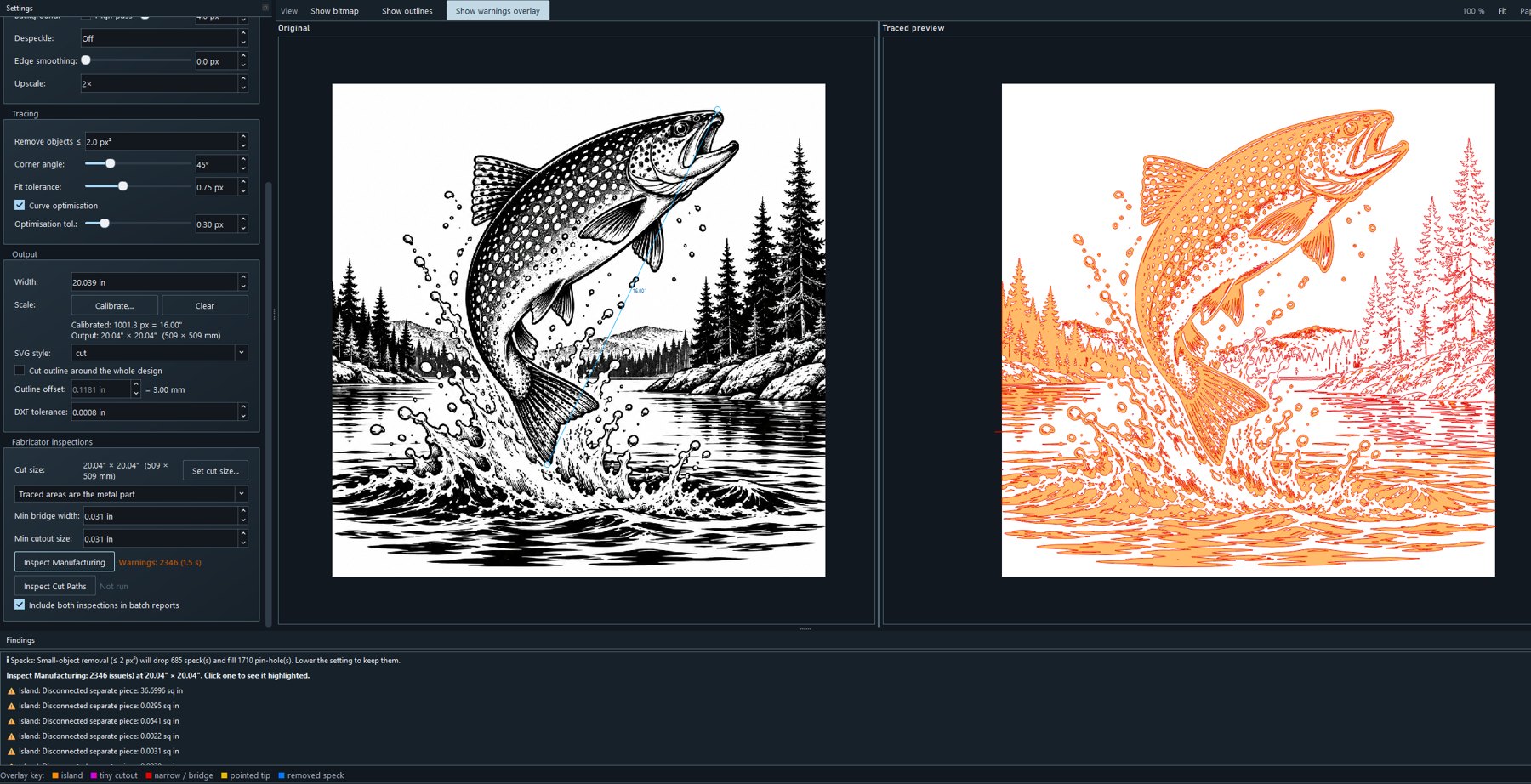
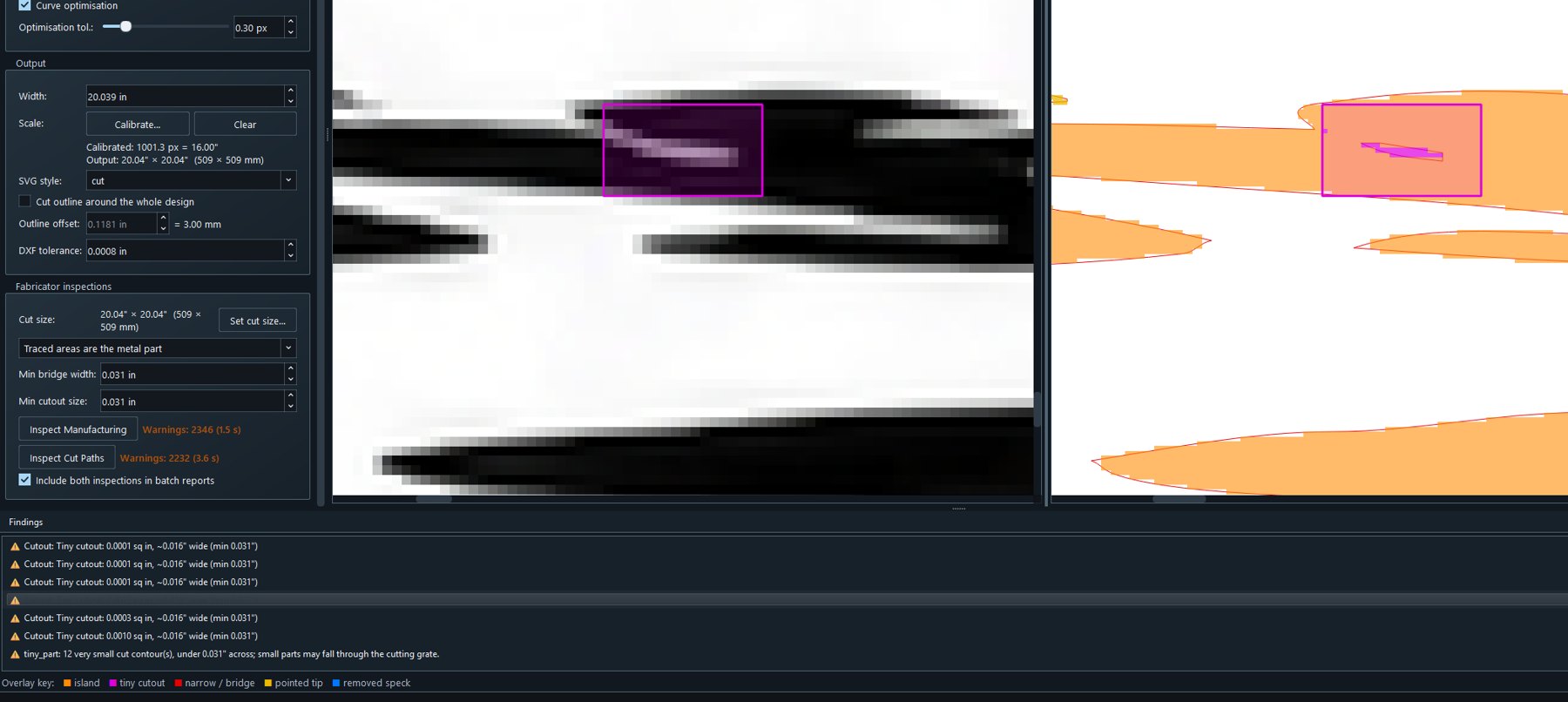
Inspect Manufacturing checks the finished artwork at its real size for islands, narrow bridges, thin parts and pointed tips. It runs only when you click it.
05 / Consider the material
Beyond the outline.
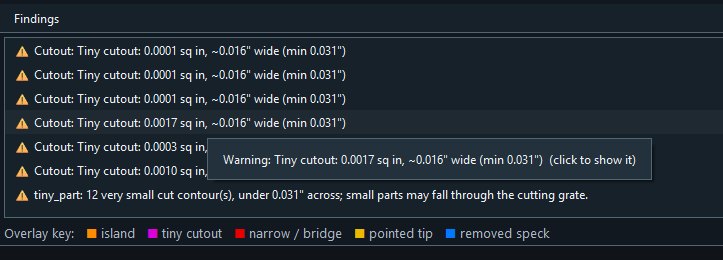
Inspect Cut Paths checks the paths as they will be exported: tiny cutouts and slots, crossing or duplicate paths, and parts too small to survive. Click any finding to jump straight to it.
06 / Make the next move
Outline. Export. Done.
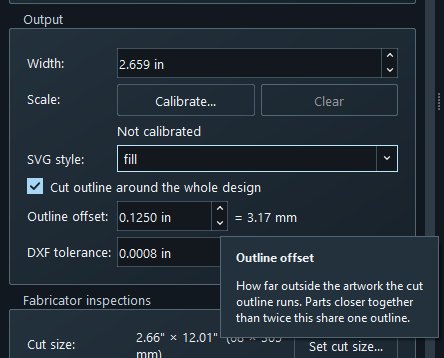
Add one cut outline around the whole design and choose how far it sits from the artwork. Then export a clean SVG and open it in your design software.
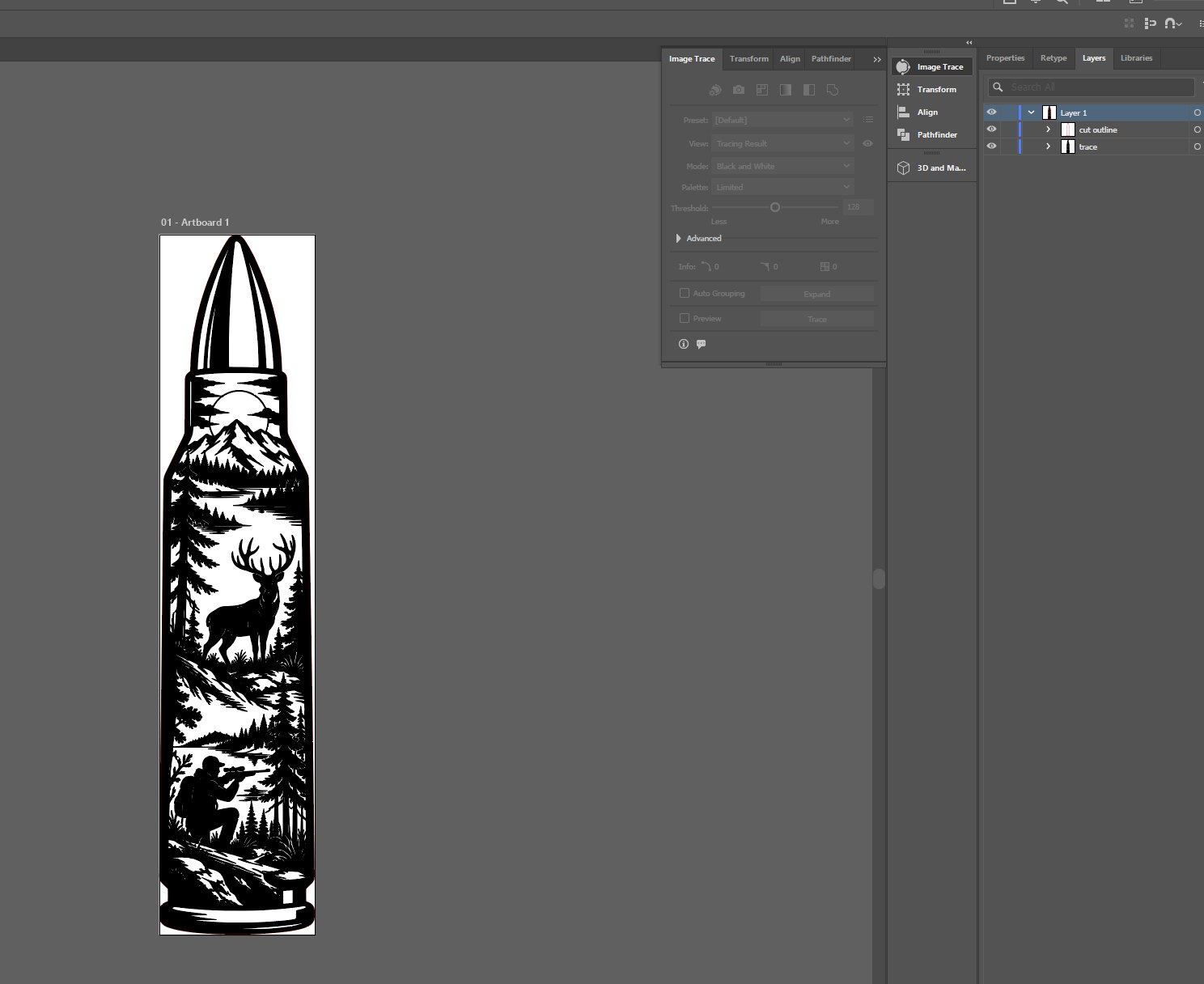
Opens in Illustrator
Cut outline on its own layer
Before / After
Your artwork. Your output.
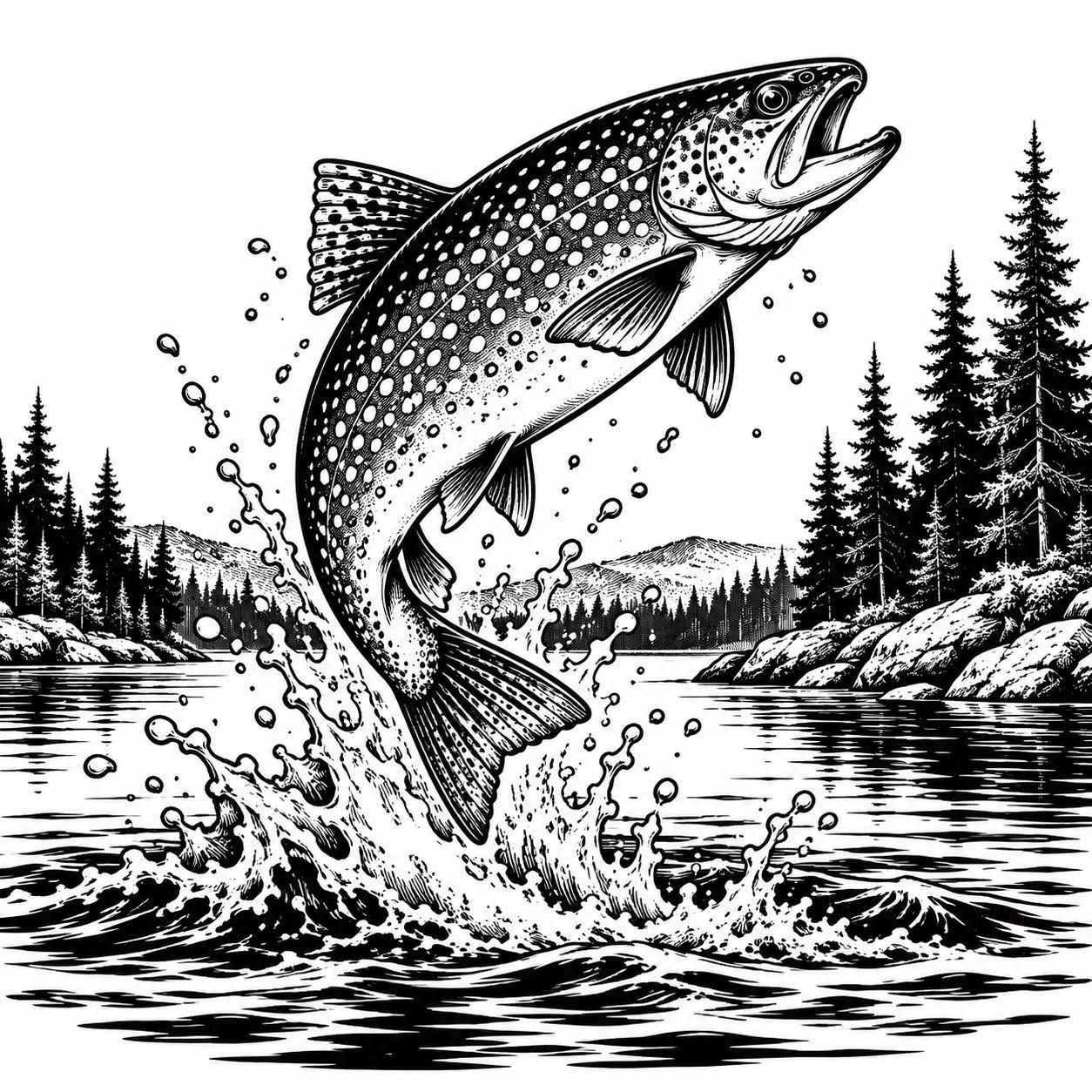
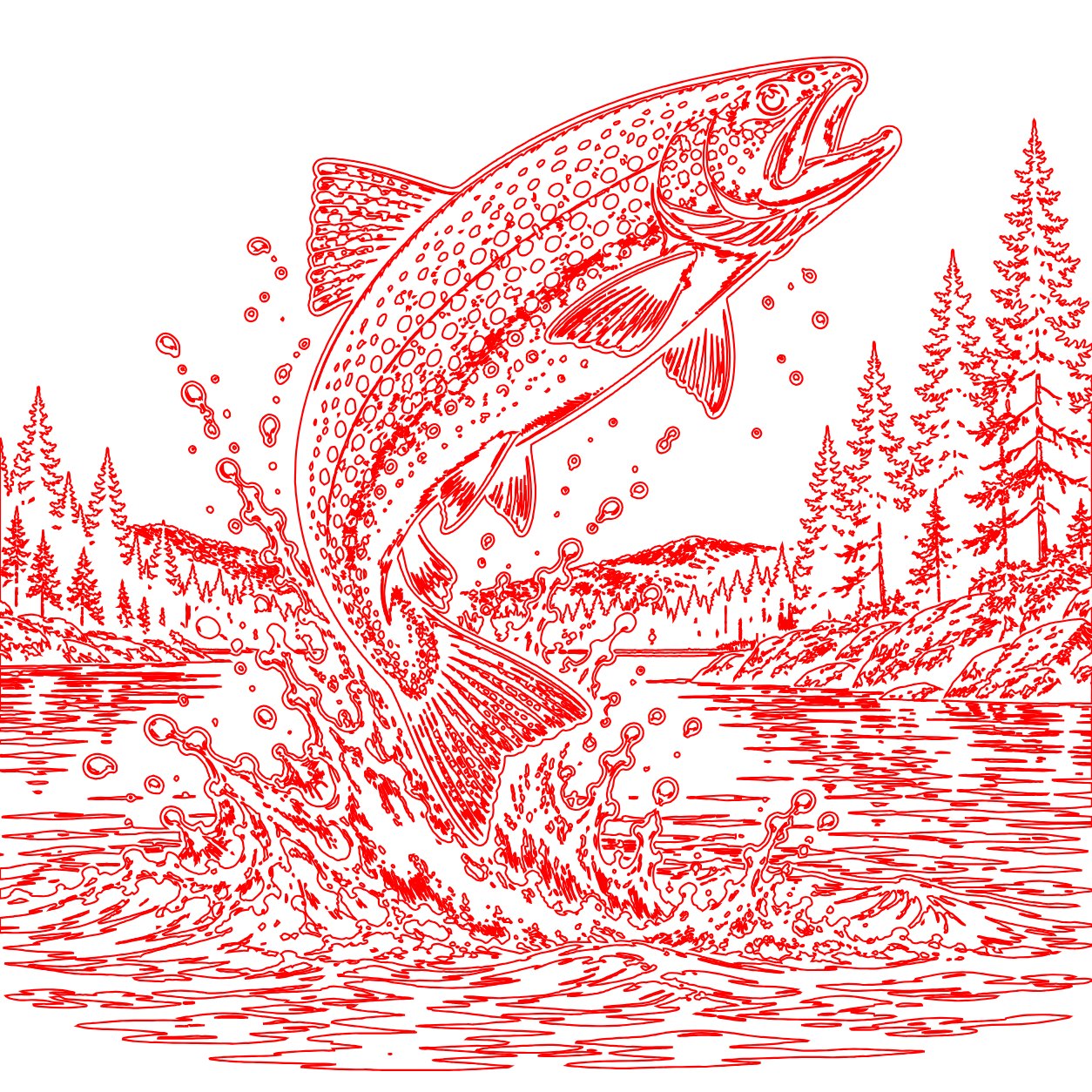
Pick an example, then drag the divider. Cut lines, engraving, or both in the same file.
Examples
Works on any design.
Logos, lettering, wildlife scenes, long narrow shapes. The same steps apply.
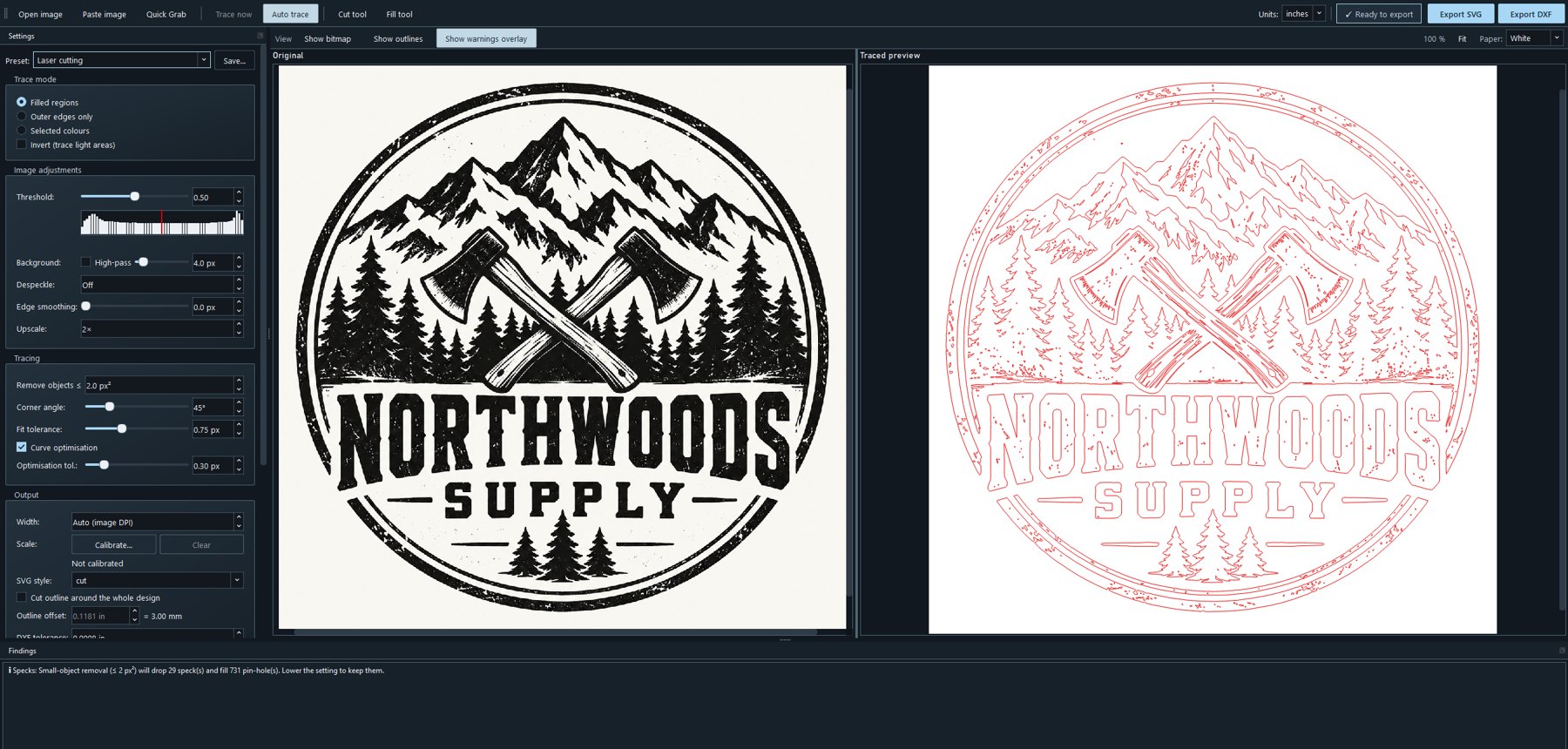
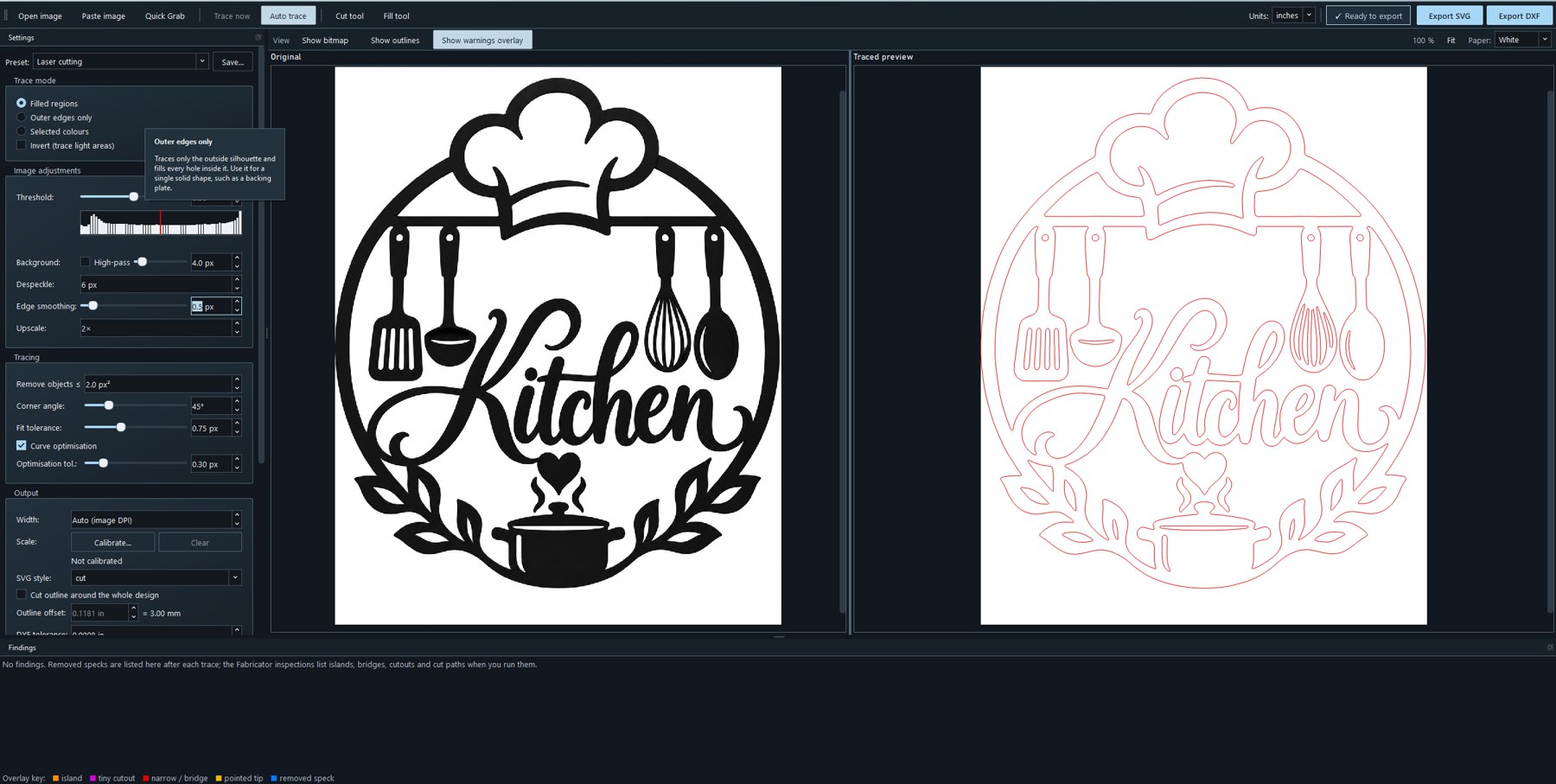
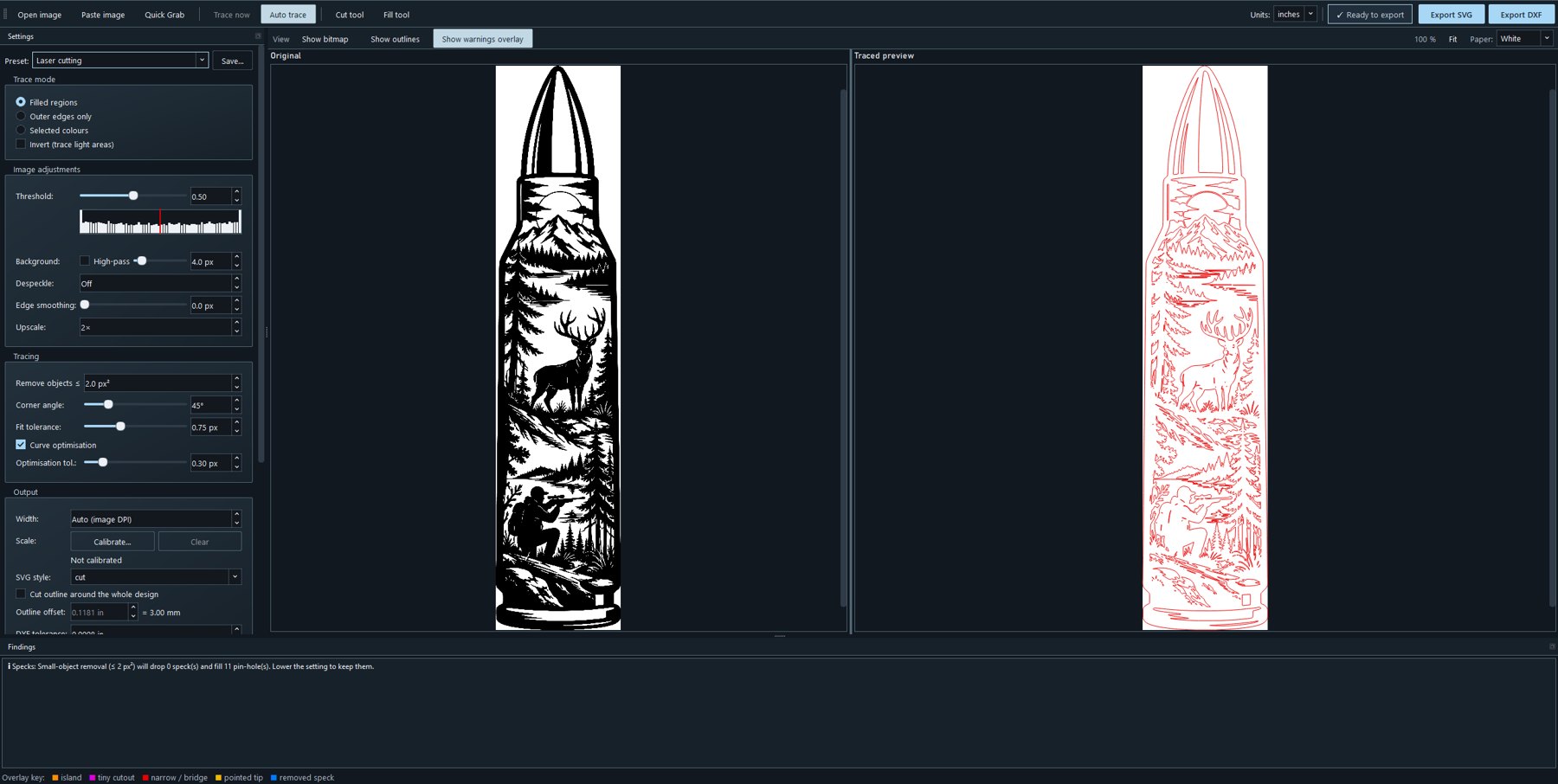
Details
A closer look.
Tap any screenshot to enlarge it.